Give the rollout a human owner
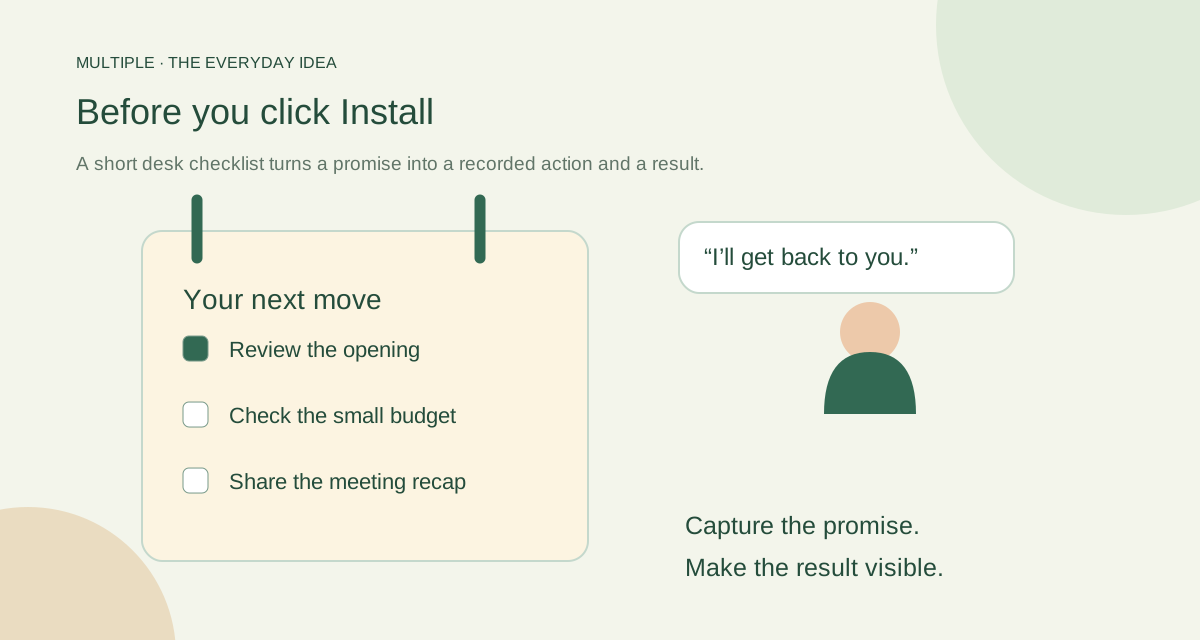
Name the business contact and the IT owner. Agree what the first team needs to do: messages, files, focused discussions, calls or a small shared draft. A short scope keeps the pilot manageable.
Keep the employee instructions separate from the server checklist. Staff should know how to sign in and get help; IT should know how to operate the system.
Prepare a dependable home for the service
IT prepares the supported Windows server, SQL database and local network address. Employee devices need to trust the server’s certificate. Supply approved prerequisites and the offline licence through the agreed process.
Allow at least 5 GiB on the selected application and data drives, plus 2 GiB on C: for Windows/setup. Those are installation minimums; messages, files and backups need their own capacity plan.
Walk through an employee’s day
Sign in, send a message, open an attachment and follow a thread. Try the forgotten-password route with a test account. Check that a contact request is easy to find.
If shared editing matters, use a small draft and sheet. Check View, Edit and Download separately, including a red occupied-cell or paragraph notice. For calling, use real microphones and test sharing and stopping a screen.
Write down what worked, what failed and what you have not tested yet.
Practise the jobs that come after launch
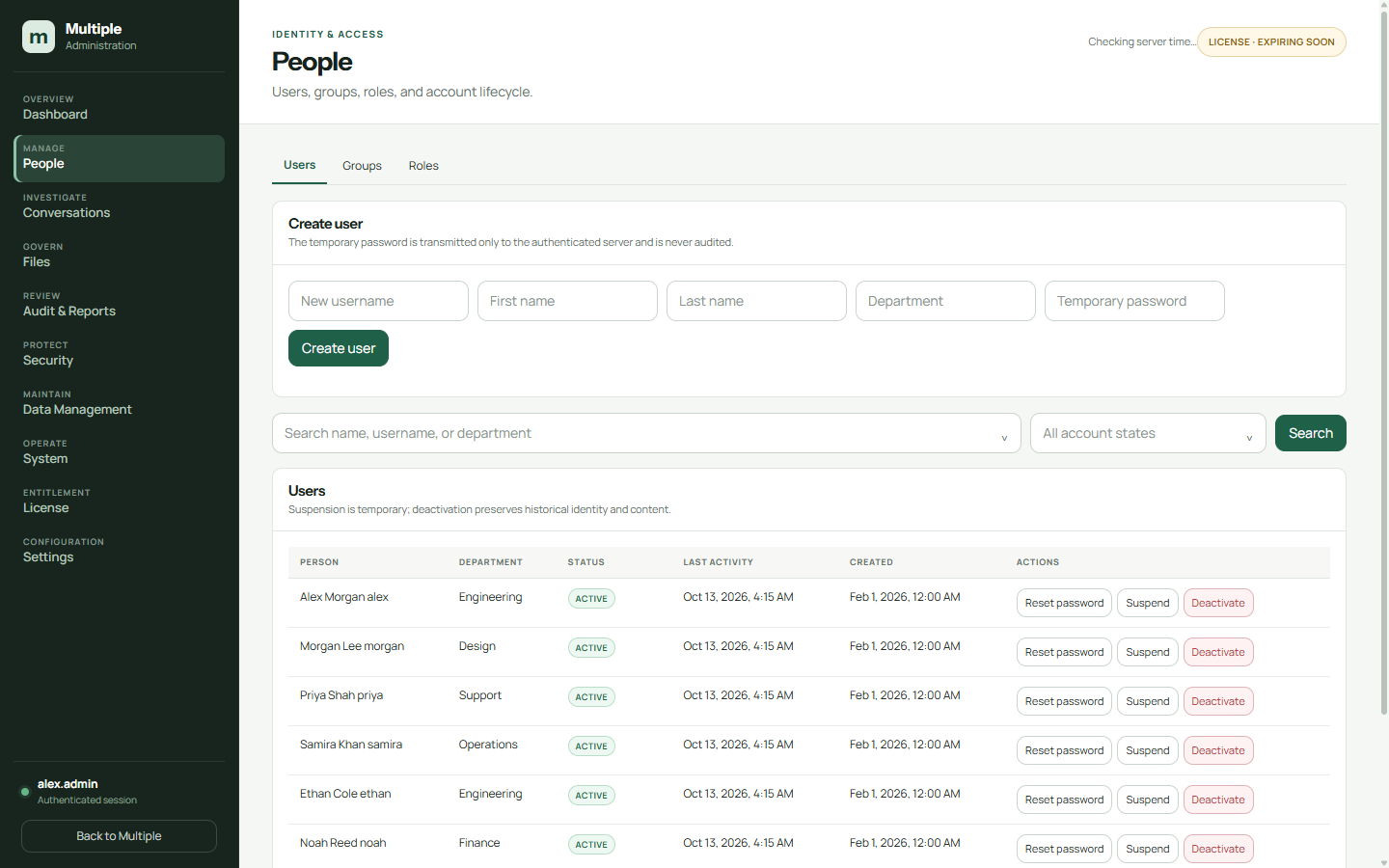
Remove a test colleague’s access and verify the result. Make a protected test backup, restore it somewhere disposable and check the messages and files together.
For updates, IT upgrades the company server with the universal installer. Supported employee apps then find the production-signed release on their LAN, show progress and reopen. Fresh devices and very old clients have separate initial setup steps.
Expand when the pilot answers your questions
Ask the pilot team where it got stuck. Make the instructions clearer and retest anything that matters to the office. Agree who handles account changes, storage, certificates, licence validity and support requests.
A working demo is useful evidence, but it does not prove every device or workload. Add colleagues when the real pilot and operating plan make sense for your business.
The fuller notes for your IT team
1. Assign ownership and define the scope
Name the business sponsor and IT administrator. Record why you are moving work conversations into a managed tool: employee access, data location, discussion context or public internet dependency. Agree which employees and workflows belong in the initial pilot.
List client platforms, estimated usage and file growth, calling expectations, retention rules and approval responsibilities. Multiple is Windows-first; mobile clients, multi-VLAN deployment and clustering are not advertised as available. Check the proposed release and outstanding production gates before scheduling customer rollout.
2. Prepare the server and database
Choose the supported 64-bit Windows environment and a dedicated server role. Prepare a supported local SQL Server default instance or SQL Server Express SQLEXPRESS and 64-bit ODBC Driver 17. Supply these through an approved source; the installer does not download database prerequisites.
The minimums of 5 GiB on selected application/data drives and 2 GiB on C: are installation prerequisites, not complete storage sizing. Separately plan messages, files, SQL growth, logs, generated clients and backups. Validate capacity for the intended workload rather than assuming a published user count.
3. Establish trusted network access
Configure internal name resolution and the certificate method: company PKI, matching supplied certificate/key or a customer-specific managed CA. Keep private keys restricted. Employee clients must trust the server certificate; disabling certificate verification is not a deployment solution.
The base application uses TCP 443. Review selected media-service flows separately and keep SQL and the loopback backend away from employee/untrusted exposure. Customer IT controls the single-VLAN network and firewall policy; Multiple does not provision enterprise routing.
4. Activate and test an employee client
Complete mandatory first-administrator credential setup. Obtain the installation-bound signed licence through the authorised issuer and import it through the approved offline process. Confirm its validity period and active status.
Distribute the generated organisation-specific desktop installer through your software channel. Test name resolution, trusted sign-in, direct/group messaging, broadcast restrictions, threads and authorised file retrieval from an employee device. Test removal of membership and account/session revocation too.
5. Validate optional services and data decisions
Test calls and screen sharing with actual devices, including any configured relay path, rather than relying on a connecting-state screenshot. Record capacity and network behaviour. Call testing and production acceptance may still be outstanding for the proposed release.
6. Prove recovery and maintenance
Create a backup and restore it on a disposable server. Verify messages/files, access controls, configuration, certificates and licensing state after recovery. Protect backup destinations as sensitive company data.
Schedule the company server upgrade and verify recovery. Supported employee apps then detect the production-signed release on their LAN and show download and installation progress before reopening. Fresh devices and very old clients have separate initial setup steps. Review certificate expiry, licence status, service health and storage regularly.
7. Agree pilot acceptance before expansion
Write down the tests, expected results and responsible owners. Record failures and unresolved risks, with a decision on what must be fixed before wider rollout. A successful source test or demo is not a substitute for acceptance of the actual packaged release and environment.
Use the checklist when requesting a Multiple demo. Bringing the network, server, employee-platform and recovery requirements lets the team discuss a specific deployment rather than make assumptions about your office.
Common questions
Does the three-month trial remove installation requirements?
No. The trial is a commercial offer. Windows, database, network, certificate, licensing and release-approval requirements still apply.
Is server installation the end of the rollout?
No. Employee-client distribution, access validation, media checks, restore testing, capacity evaluation and operational ownership also need acceptance.