Think of the office path first
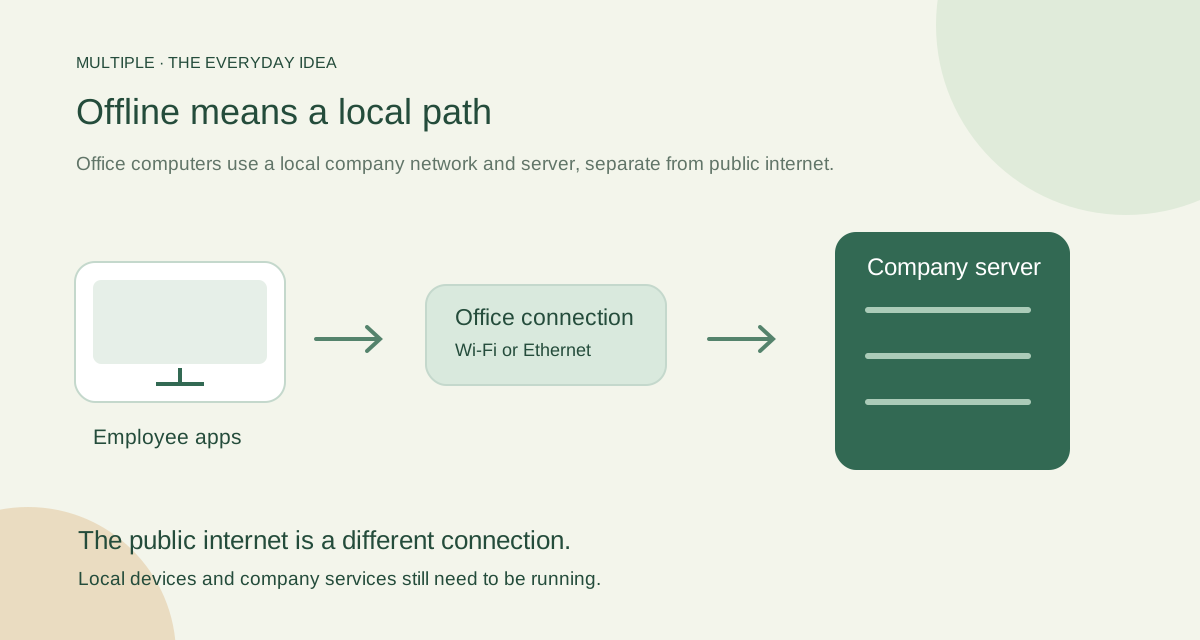
A colleague’s Windows app connects to the configured Multiple server on the local network. The company service handles messages, accounts and stored files. That path can keep working when public internet is unavailable.
The computer is not working entirely alone. A failed local connection or stopped server can still interrupt collaboration. “Without internet” should describe the path clearly, rather than suggest that nothing needs to run.
Check the few things the path needs
The employee device needs its local connection and trusted company address. The server and database need to be running. The software and valid offline licence need to be supplied through the approved setup process.
Basic shared documents, sheets and code editing use the company service. They do not require a separate Office editor server. Calling uses its selected internal media services, which need their own checks.
Try an internet-loss exercise
Use a disposable setup with IT’s help. Keep the local network available while blocking public internet. Send a message, open an authorised attachment and make a small edit with a second test colleague.
Write down the app version and results. If something fails, identify the service it depends on. That gives you a useful answer about your actual office rather than a blanket claim about every disconnected environment.
Keep setup and updates in the plan
Approved prerequisites still have to reach the office. For later Multiple releases, IT upgrades the company server and employee apps find the production-signed update on their LAN. Windows may ask for administrator permission to install it.
Fresh computers need the company bootstrap installer, and very old clients may need a one-time IT update. A local update path does not remove the need to plan maintenance and keep a recovery option.
Be clear about what is available today
The AI summary button is removed from the current beta; it is not a working feature being offered here. Core messaging and basic shared editing do not rely on it.
For your pilot, use the installed version’s real features and a small office scenario. Check access, media and recovery as well as sending a message. A clear local-work plan is more useful than a vague “everything works offline” promise.
Keep the employee help instructions short. Let IT own the detailed service checks.
The fuller notes for your IT team
Follow the message path
In Multiple’s current setup, a Windows employee client connects to the configured internal server hostname. Internal DNS maps that hostname to the server’s stable private IPv4 address. The client uses a trusted HTTPS/WSS application connection; the server checks accounts and conversation access.
The server processes the message and stores structured records in the company-managed database. Shared attachments are kept in server storage and retrieved through authorised application requests. Employee devices do not directly connect to SQL, and Multiple is not a serverless peer-discovery tool.
What must be ready before disconnecting?
Approved installers, SQL prerequisites, the ODBC driver and a valid installation-bound offline licence must be available. An internal hostname, trusted certificate chain and synchronised time are also part of the documented deployment. These steps need planning even when a public internet connection is available during preparation.
Offline verification does not mean that licensing disappears. The entitlement must remain valid for the installation. Customer IT transfers approved software and licence files through its chosen process and distributes the generated employee client through its approved software channel.
What still needs to stay online locally?
The office network, application server, database and storage must remain reachable and operational. An internet outage may leave that path intact; a failed internal switch or stopped SQL service may not. Employees need access to the configured server, not just a running desktop app.
The current network baseline is one local VLAN and one application backend. Multiple does not configure switches, DNS, routers or VLAN routing. Do not use “LAN messenger” as proof that an untested network layout, disconnected subnet or multi-server deployment will work.
Verify with an outage exercise
During an agreed pilot, test the functions you need from employee computers while the public internet path is unavailable. Keep the internal network and required local services intact. Verify messages, files, sign-in and any selected call paths, and record which dependencies were used.
Also test internal service failure and recovery, backups and restoration. These exercises answer different questions: internet independence, local availability and recovery capability. Capacity, release approval and production acceptance remain separate checks.
Keep the security work in view
A local application can avoid public exposure, but compromised devices and authorised misuse remain possible. Configure access carefully, use trusted TLS, maintain endpoints and protect downloaded files and backups.
Start with the deployment checklist, assign an IT owner and request a demo centred on your actual network. That creates a more useful conversation than simply asking whether the product is “offline”.
Common questions
Does offline mean no local network is needed?
No. Employees still need the local company connection and running services.
Do employee updates need public internet?
Supported apps find the signed employee release on their company LAN after IT upgrades the server. Initial setup still needs approved software.
Are AI summaries a working beta feature?
No. The current beta has removed the summary control and does not offer it as a working feature.