Start smaller than you think
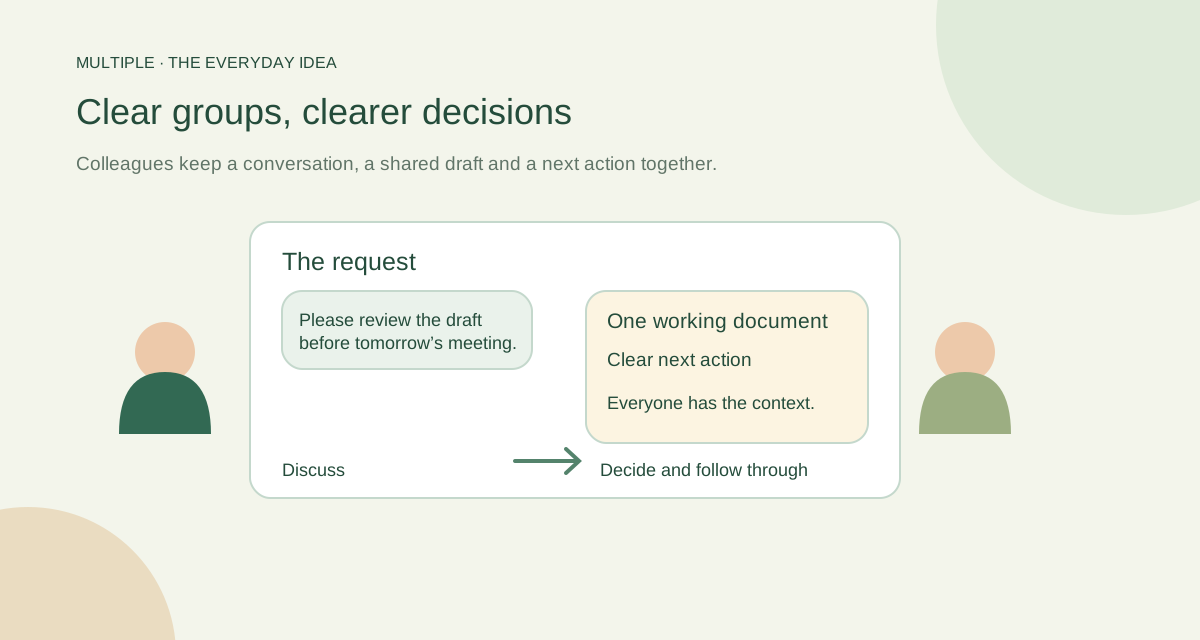
Create a few spaces people can explain in one sentence. “Operations” is for everyday coordination. “Company updates” is for announcements. A project group is for the people doing that work.
Too many empty groups create a different kind of confusion. Add a space when there is a clear audience and purpose, rather than making a channel for every possible topic.
Give announcements a clear job
An announcement should tell people what changed, who it affects and what action is needed. Include a date when the timing matters. Keep the important detail near the beginning.
Multiple’s broadcasts distinguish posting from open discussion. Review who may post and moderate, and make sure staff know where to ask a follow-up question.
Let one question have its own thread
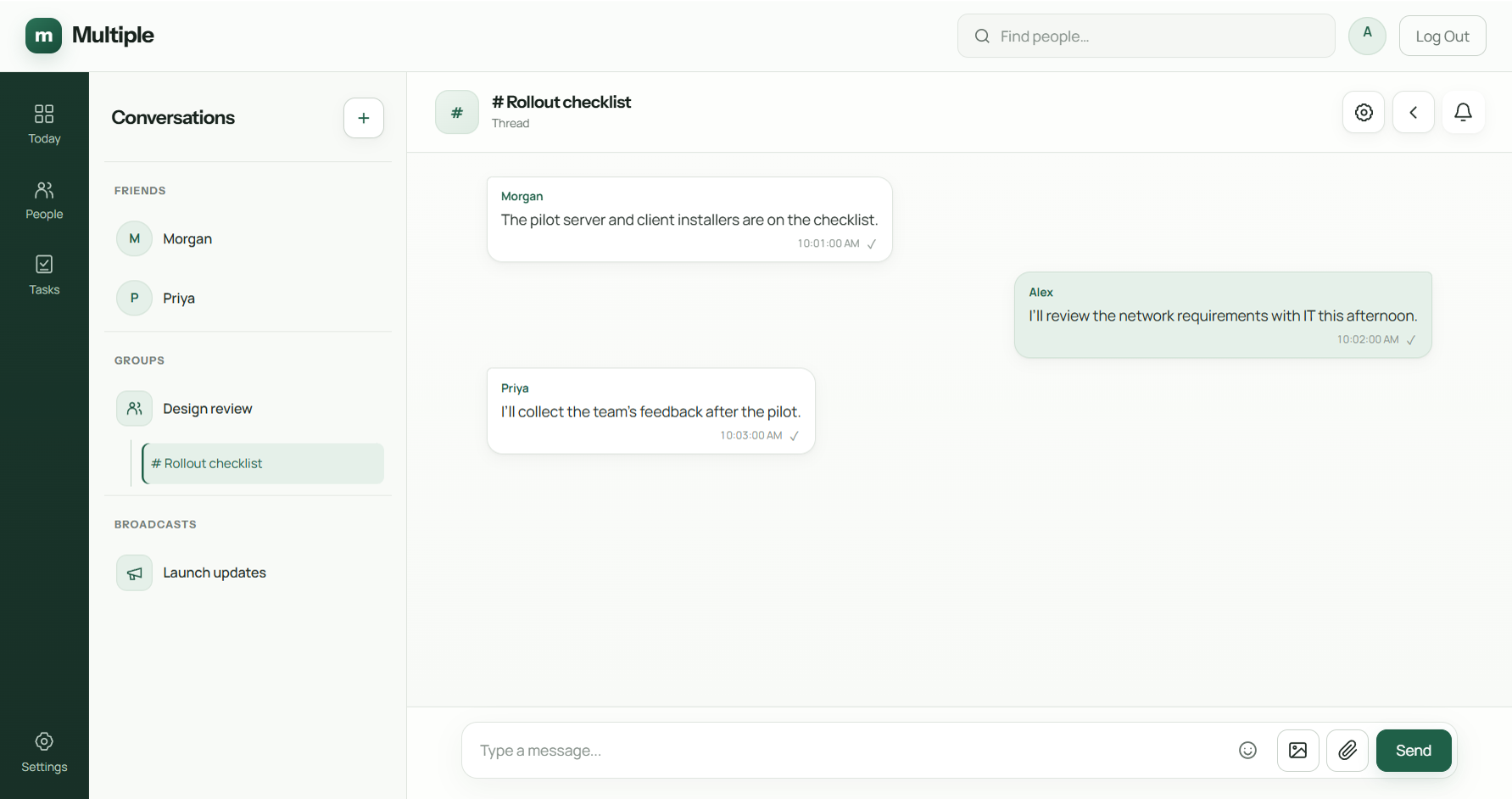
When the group starts discussing one detail, create a focused thread from the relevant text message. Readers can still see what started the discussion, instead of guessing why everyone is talking about a heading or quantity.
Threads follow the parent conversation’s access. That differs from shared documents, whose View, Edit and Download permissions are selected individually. Keep that distinction clear when you share a draft.
| Name | Purpose | Review habit |
|---|---|---|
| Operations · daily work | Order questions and operational updates | Department owner reviews membership |
| Accounts · internal | Finance team coordination for its authorized audience | Check access after role changes |
| Support · issues | Support requests and their outcomes | Close the loop with a decision or resolution |
| Company notices | Notices sent to the intended company audience | Check recipients and wording before sending |
| Stock review · linked thread | Focused discussion connected to its source message | Post the final decision back in context |
Finish with the decision
A discussion does not always need a long summary. One short message can say what was agreed and what happens next. Put it where the people doing the work will look for it.
Use mentions thoughtfully. Calling everyone’s attention to every small change makes the important messages harder to recognise. Review a busy group’s membership and notification habits occasionally.
A useful recap says “We agreed X; Morgan will do Y by Thursday.”
Check it with someone who missed the meeting
Ask a colleague to find the latest decision without your help. Can they follow the source message, thread and file? Their questions show where the structure needs work.
The goal is not perfect organisation for its own sake. It is a workspace where people can find the answer and return to the job without asking the group to repeat yesterday.
The fuller notes for your IT team
Build a small, understandable starting structure
Start with groups that mirror actual stable teams: Operations, Accounts and Support. Give each a short purpose statement and a person responsible for reviewing its membership. A temporary project may justify a separate group when its audience or lifespan differs from the department.
Avoid duplicate groups with almost identical names such as “Office,” “Office New” and “Office Latest.” Employees should not have to guess which one contains the current decision. Before creating another group, check whether a linked discussion in an existing conversation would keep the same audience and better context.
Keep a focused discussion connected
A contextual reply identifies the message you are answering. A linked thread provides a focused discussion associated with the parent conversation. In Multiple, linked threads inherit the conversation’s access; they are not a way to introduce a secret audience inside an existing group.
Use a new restricted conversation when the intended audience changes. Use a thread when the audience remains appropriate but the subject needs a focused exchange. Other platforms use their own thread rules; Slack’s official documentation also describes threads as a way to organize message-related discussion.
Use an announcement template
An office announcement should answer who, what, when and what to do. Example: “Audience: Operations. Change: stock-count window moves to Friday. Effective date: 23 October. Action: confirm the revised slot with the department lead by Thursday. Questions: reply in the relevant department discussion.”
Check the audience before sending a broadcast. A notice about a restricted finance process does not belong in an unrestricted company announcement. Where read details are available, use them to inform follow-up; a read indicator is not proof that a person understood or completed the requested action.
Review access and reduce noise
Schedule a membership review with department owners and repeat it for joiners, movers and leavers. Compare membership against the intended audience rather than against how long someone has worked at the company. Linked access makes parent-conversation membership especially important.
Review a week of messages with the pilot team. If unrelated work dominates a group, clarify its purpose or move a genuinely separate audience to its own group. If important notices are missed, improve titles and response instructions before adding more broadcast traffic.
Make decisions findable
Close a focused discussion with a brief outcome: “Chosen option: … Owner: … Effective date: … Reference file: …”. Keep this outcome in the conversation context and use the agreed group naming consistently.
Multiple’s Today/unread workflow can help staff return to activity, but it does not replace a clear final decision. Ask a colleague who missed the discussion to locate the outcome as the final test of your structure.
Sources and further reading
External product references checked 12 October 2026.
Common questions
Where should an office announcement go?
Use the announcement space with the intended audience and agreed posting rules. Keep the action and date near the beginning.
Who can see a thread?
Thread access follows its parent conversation. Shared-document grants are handled separately.
How do we make a decision findable?
Post a short recap saying what was agreed and what happens next, with the relevant context.
Try this at work
Post one useful announcement and give one follow-up question a focused thread. Ask someone who missed the discussion to find the final decision.
Use the deployment review checklist ↗